 by
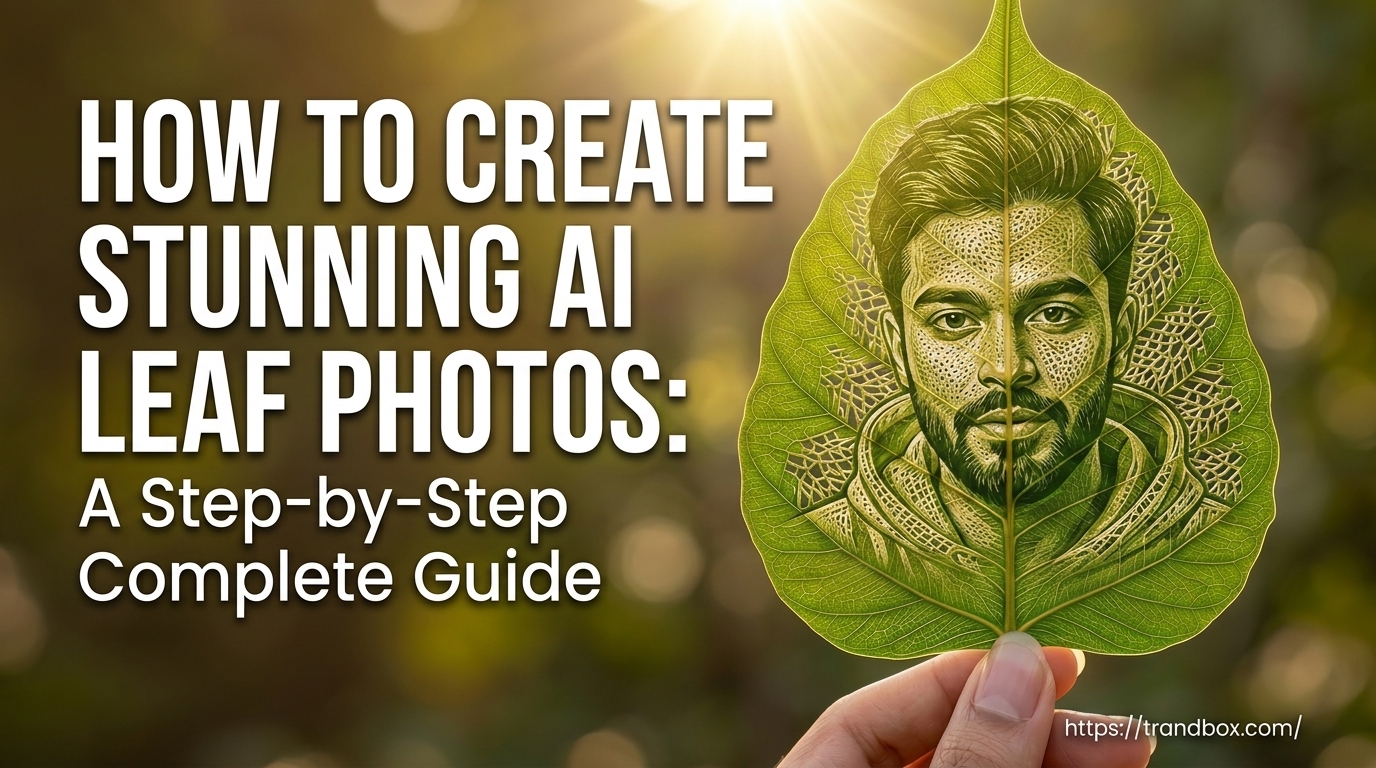
by I remember scrolling through Instagram late one night. My feed was the usual repetitive mix of tech news and memes. Then, I stopped completely. I was staring at a photo of someone holding a bright green leaf up to the sun. But the veins of the leaf weren’t normal. They twisted, broke apart, and connected to form a ridiculously realistic portrait of a man’s face.
For a few seconds, I honestly believed some wildly patient artist had sat there with a microscope and a tiny scalpel, carving away the plant tissue. I even zoomed in to look at the edges. But then I noticed a weird blur in the background and a slightly unnatural bend in the stem. It was AI.
My immediate next thought was: I have to figure out how to do this.
I spent the next two weeks burning through generation credits. I tested different platforms, typed out hundreds of variations of words, and generated a whole lot of garbage before I finally cracked the code.
If you want to learn how to make these images yourself, you’re in the right place. I’m not just going to hand you a single prompt to copy and paste. That’s boring, and it won’t teach you anything. Instead, I’ll walk you through exactly how I build my instructions, the mistakes I made, and the tools that actually work.
Why Do These Photos Actually Fool People?
Before we open up any apps, we need to talk about why this specific visual trick works so well. If you just type “a picture of a face on a leaf” into an image generator, you are going to get a flat, cartoonish mess that looks like a cheap sticker.
To trick the eye, the image needs to feel organic. When I was failing over and over, I realized I was missing a few key elements:
It’s all about the texture. You have to force the AI to build the portrait out of the leaf’s anatomy. Think about the skeletal structure of a dead leaf you find in the winter. It’s a mesh of tiny fibers. Your instructions need to make the AI understand that it’s removing tissue to leave those fibers behind.
Lighting is everything. Have you ever held a real leaf up to the sun? The thick veins look dark, and the thin parts glow green. This is called backlighting. If the sun is hitting the front of your AI leaf, the illusion completely dies. The light has to shine through the empty spaces.
You need a human touch. At first, my AI kept spitting out giant leaves floating in a black void. It looked like a 3D model. Adding a human hand holding the stem grounds the picture. It tells the viewer, “This is a photo someone took with their phone in a garden.”
The Best Apps for the Job (My Honest Take)
I tried a bunch of different generators so you don’t have to waste your time. Here is what I found works best for this specific trend.
1. Google Gemini This became my favorite tool for this project. If you use the web version (especially if you have the paid tier with the Nano Banana 2 model), it is incredibly smart. The best thing about Gemini is that it actually reads your whole sentence. If I write a long paragraph explaining exactly how the sunlight should hit the carved edges, it listens. It gives a really clean, crisp look and handles the green colors beautifully.
2. Midjourney (v6) If you are obsessed with getting a photo that looks like it was taken with a $3,000 camera, you have to use Midjourney. Yes, using it through Discord is annoying at first. But the textures it creates are insane. Midjourney will randomly add tiny, realistic flaws—like a small brown spot on the edge of the leaf or a slight tear—that make the final image look completely authentic.
3. Bing Image Creator Don’t want to pay for a subscription? Use Bing. It runs on OpenAI’s DALL-E 3 and it’s free. It’s really good at following your prompt strictly. Sometimes the leaves look a tiny bit more like a digital painting rather than a raw photograph, but honestly, for social media, it’s more than enough.
How to Build Your Own Master Prompt
Okay, here is the exact framework I use to get consistently good results. Think of it like setting up a photoshoot. You need to control the camera, the lighting, and the subject.
Step 1: Set the Camera Angle
Start by telling the AI what kind of photo this is. I always use words like extreme close-up or macro photography. Then, describe the object. I like using a large, bright green Bodhi leaf or a wide maple leaf because they give the AI a big canvas to work with. Make sure you mention that a hand is holding it by the stem.
Step 2: Bring in the Sun
Next, describe the environment. You want an outdoor setting, but you don’t want it to be distracting. I tell the AI to create a heavily blurred garden background (you can use the term bokeh effect if you want to get technical). Then, explicitly state that bright, natural sunlight is shining directly behind the leaf.
Step 3: The Carving Instructions
This is where you make or break the image. You need to explain the carving process. I tell the AI that the inside of the leaf has been masterfully carved out. I use phrases like intricate negative space, etched away, and interconnected fibrous mesh. You are basically telling the computer that the portrait isn’t drawn; it’s what’s left over after the leaf is cut.
Step 4: Describe the Face
Keep this part simple. Describe who you want to see. A young guy with a messy beard, or an older woman with glasses. The AI relies on shadows to build the leaf veins. Faces with distinct features, sharp jawlines, or facial hair translate really well into this carved style.
Want to Put Your Own Face on It?
Generating a random face is fun, but putting yourself on the leaf is where people really lose their minds. This takes a little extra work using image references.
If you are using Gemini,
it’s super easy. Just upload a selfie into the chat box using the attachment button. Then type out your prompt using the steps above, but add a note at the beginning: “Use the face in the attached photo as the subject for this carving.”
If you are using Midjourney,
you upload your selfie to Discord, copy the image link, and paste that link at the very start of your prompt. At the end of your text, type That tells the bot to prioritize your face over its own random ideas.
A massive piece of advice here: Do not use a flat, perfectly lit selfie. If your bathroom mirror photo has no shadows, the AI has no idea where to carve the deep holes in the leaf. You need a photo with contrast. Stand near a window where half your face is in shadow. That contrast is what the AI turns into the leaf’s intricate mesh.
My Biggest Fails (And How to Fix Them)
I promised I’d share my mistakes. Here are the most common ways this goes wrong and how I fixed my prompts.
The “Wet Paint” Look: Sometimes the AI just paints a face on the leaf. It ignores the carving idea entirely. When this happened, I realized my prompt was too weak. I had to go back and aggressively add words like skeletal structure and cut-out fibers to force it to understand.
The Glowing Alien Leaf: A few times, I asked for sunlight, and the AI made the leaf itself glow like a neon sign. It looked radioactive. To fix this, I had to clarify that the sunlight was passing through the empty carved spaces, not glowing from the leaf itself.
Background Chaos: Once, the AI generated a beautiful leaf, but the background was a highly detailed, busy forest with birds and trees. You couldn’t even focus on the carving. That’s when I learned to always insist on a completely out-of-focus background.
What Are People Actually Doing With These?
You might spend an hour making these and then wonder, “Okay, now what?”
Honestly, they make incredible profile pictures. I swapped my standard headshot for an AI leaf carving of myself on WhatsApp, and I had four people message me the same day asking who drew it for me.
I’ve also seen small business owners use this trick. A friend of mine sells organic soaps. I helped her write a prompt to carve her company’s logo into a wet tropical leaf. She used it for an Instagram ad, and it looked so premium and earthy. You can do the same thing with short words, animal shapes, or anything that fits a natural vibe.
Just Start Typing
The craziest part about this whole trend is how fast the technology is moving. A year ago, AI couldn’t even figure out how to draw a normal hand, let alone the microscopic cellular structure of a plant overlapping with human facial proportions.
Don’t overthink it. Take the ideas we just talked about—the macro lens, the backlighting, the carved fibrous texture—and just start typing. Try making an autumn leaf instead of a green one. Try putting a lion’s face on it instead of a human.
It takes a little bit of trial and error to get the exact look you want. Sometimes the machine gives you a leaf with three stems or a hand with six fingers. You just laugh, tweak a word or two, and hit generate again. Once you get that perfect, glowing, hyper-realistic shot, you’ll see why I spent so much time figuring this out.
AI Leaf Prompt Generator
Premium AI image prompt hasil karne ke liye niche button par click karein.