 by
by Look, we’ve all been there. Both of your hands are completely occupied—maybe you’re wrestling with a messy breakfast sandwich, covered up to your elbows in dishwater, or your hands are just coated in grease from working on a bike. And right at that exact moment, your phone screen does something annoying.
Maybe a notification drops down right over the YouTube video you’re watching. Or maybe, if you’re like me and run desktop pets on your device, your little digital companion decides to take a nap directly over the exact paragraph you were trying to read.
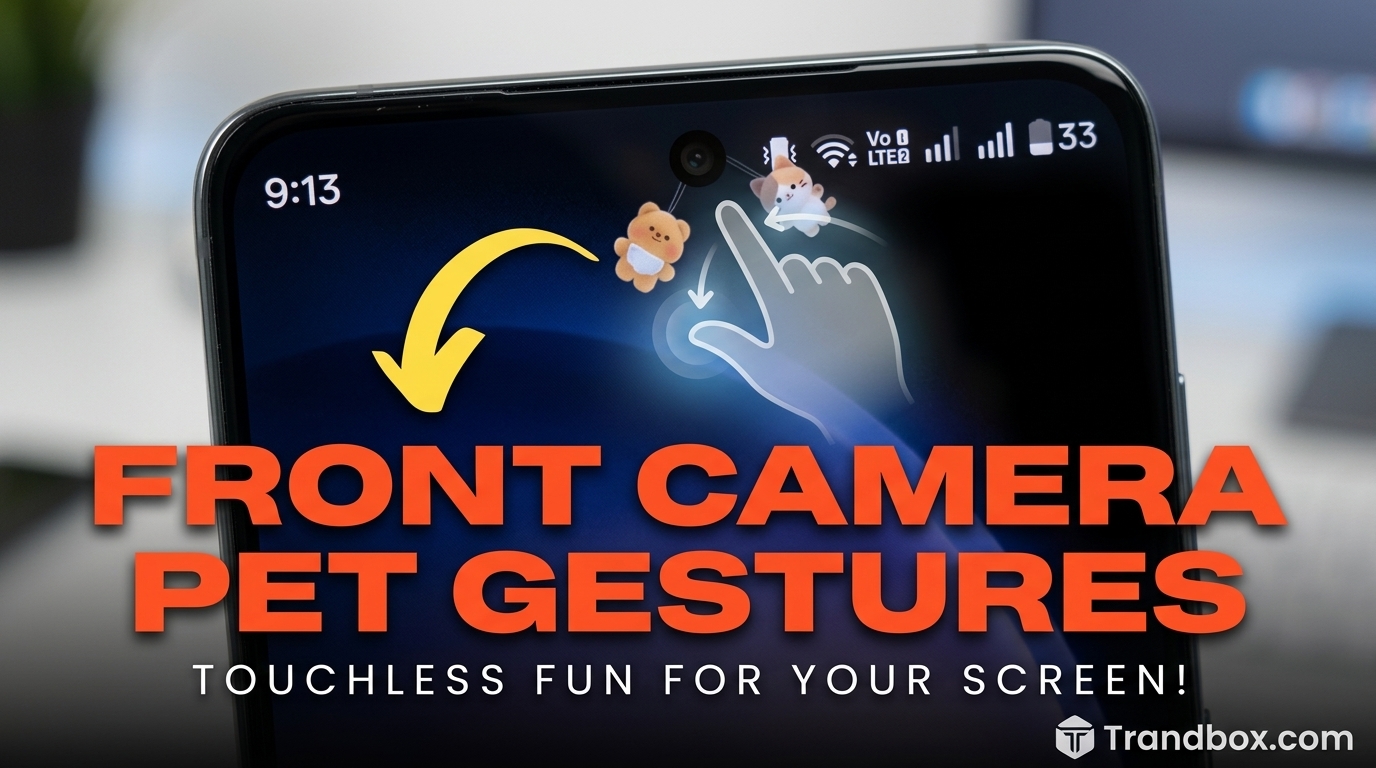
Normally, you have to do the awkward “nose boop” on your screen or aggressively wipe your hands on your jeans just to swipe the obstruction away. But a few weeks ago, I stumbled onto a feature inside the Pet On Screen Shimeji Kawaii app that completely solved this for me. I literally just waved my messy hand in the air, and my on-screen anime pet went flying to the top of the display out of my way.
No screen smudges. No pausing what I was doing. It felt like a cheap Jedi mind trick, and honestly? I kind of love it.
If you’re out of the loop and want to grab the app before we dive in, here is the link to the Play Store: Pet On Screen Shimeji Kawaii.
Let’s talk about how this touchless gesture stuff actually works in the real world, the mistakes I made trying to set it up, and whether or not it’s actually worth keeping on your phone.
A Quick Trip Down Memory Lane
Before we get into the sci-fi hand-waving stuff, we need to talk about what Shimejis actually are. If you spent any time on internet forums in the late 2000s, you probably remember them. They were these chaotic, tiny little desktop mascots that you could download for your PC. They would run around your screen, climb up the sides of your browser windows, duplicate themselves endlessly, and occasionally steal your mouse cursor.
They were purely aesthetic, completely ridiculous, and wildly popular.
The Pet On Screen Shimeji Kawaii app basically takes that exact hit of nostalgia and shoves it into modern Android phones. You pick a character (they have everything from generic cute animals to chibi versions of popular anime characters), and it just lives on your screen as an overlay. It walks on top of your apps, hangs upside down from your status bar, and generally just goofs off while you scroll through Reddit or text your friends.
But moving them around manually gets tedious. If I’m typing a long email and my little orange cat decides to sit on the “Send” button, having to stop typing to drag him away is annoying. That’s exactly why the developers added front-camera gestures.
How the Touchless Magic Actually Happens
When I first heard about “front camera gesture controls” for a screen pet, I was skeptical. Usually, that kind of tech is reserved for high-end smart home hubs or crazy expensive car dashboards. You don’t expect to see it in a fun personalization app. I assumed it would be super buggy or barely register my movements.
I was wrong.
The app essentially uses your phone’s selfie camera to look for specific hand shapes. It runs a lightweight tracking algorithm in the background. When it sees you swipe your hand left, it translates that physical motion into a digital command, tossing your pet to the left side of the screen.
It sounds complicated, but in practice, it’s remarkably fluid. You just hold your hand a few inches from the screen, make a motion, and the little guy reacts.
My Setup Experience (And How Not to Mess It Up)
Getting this running isn’t hard, but there are a few hoops to jump through. Here is the exact process I used, along with a couple of roadblocks I hit so you can avoid them.
1. The Privacy Panic (Camera Permissions) Right off the bat, the app is going to ask for constant camera permission. I’ll admit, my thumb hovered over the “Deny” button for a solid ten seconds. Giving a random app access to my camera at all times feels sketchy.
But here’s the deal: for the app to see your hand gestures while you are in other apps (like browsing Chrome or watching TikTok), it has to be able to use the camera in the background. The developers state that all of the gesture recognition is processed locally right there on your device. Nothing is being recorded or beamed off to a server somewhere. If you’re using a modern Android phone, you’ll also see that little green dot in the corner of your screen alerting you that the camera is active, so you always know when it’s looking for a gesture.
2. Finding the Sensitivity Sweet Spot Once I got the pet on my screen and the camera turned on, I ran into my first real issue. The default sensitivity was way too high.
I was sitting at my desk, and every time I reached for my coffee mug or adjusted my glasses, my phone would catch the movement in the peripheral of the camera. My poor screen pet was being thrown violently across the screen every three minutes because the app thought I was swatting at it.
The fix: Dive into the app’s gesture settings. You need to calibrate it. I bumped the sensitivity down so that it only registers very deliberate, flat-handed swipes directly in front of the lens. Once I tweaked that slider, the false positives completely stopped.
The Gestures I Actually Use
There are a few different movements the camera can pick up, but I found myself only really relying on two of them consistently:
-
The Aggressive Swipe: This is exactly what it sounds like. You swipe your hand through the air, left or right. It applies physical force to the digital pet. If they are in your way, a quick wave sends them tumbling out of your line of sight. It is incredibly satisfying.
-
The Point/Poke: If you mimic a tapping motion in the air toward the camera, it registers as a touch. This usually triggers the pet’s “startled” animation. They might jump up, do a flip, or fall down. I use this purely just to mess with the character when I’m bored.
Where Things Fall Apart (The Realities of the Tech)
I’m not going to pretend this is a flawless, perfect system. It’s awesome, but physics and hardware limitations still exist. Here are the main issues I ran into after living with the app for a few weeks.
The Dark Room Problem This should have been obvious to me, but I didn’t think about it until it happened. I was laying in bed around midnight, room pitch black, scrolling on my phone. The pet crawled over a picture I was trying to look at. I swiped my hand in the air. Nothing. I did it again. Still nothing.
Because it relies entirely on the optical lens of your front camera, it needs light. If you are in a dark room, the camera can’t see your hand, which means the gesture controls flat-out won’t work. The light emitting from your phone screen isn’t enough to illuminate your hand properly for the sensor. In the dark, you have to go back to using your actual fingers.
The Battery Drain Reality Check This is the big one. After day two of using the app, my phone was dead by dinner time.
Running a background overlay is fine. But constantly running the camera while simultaneously processing image-recognition software? That eats battery for breakfast. My phone got noticeably warm during long sessions of having the feature turned on.
How I manage it: I treat the gesture feature like a tool, not a permanent state. I don’t leave it on 24/7. If I’m at work and my phone is on a charging stand on my desk, I leave it on. If I’m cooking and know my hands will be messy, I toggle it on. But if I’m out running errands all day and need my battery to survive, I turn the gesture tracking off and just let the pet roam normally.
Why You Should Actually Try It
It is really easy to dismiss stuff like this as just a gimmick. And yeah, it kind of is a gimmick. But it’s a really fun one.
Smartphones have become so boring over the last few years. Every app looks the same, every phone is just a glass slab, and the way we interact with our devices hasn’t changed in a decade. We tap, we scroll, we pinch. That’s it.
Adding a layer of touchless, physical interaction brings a weird sense of magic back to using a phone. When you wave your hand and a tiny digital dog goes flying across your WhatsApp conversation, it breaks up the monotony of the digital world. It makes your phone feel a little more alive and a lot less clinical.
Plus, when you actually are eating pizza and don’t want to grease up your screen, it is a lifesaver.
If you have a fairly modern phone with a decent processor to handle the camera tracking, you owe it to yourself to give it a shot. Customize your pet, tweak those sensitivity settings so you don’t drive yourself crazy, and see how it feels. It takes an already fun personalization app and elevates it into something that feels genuinely futuristic.